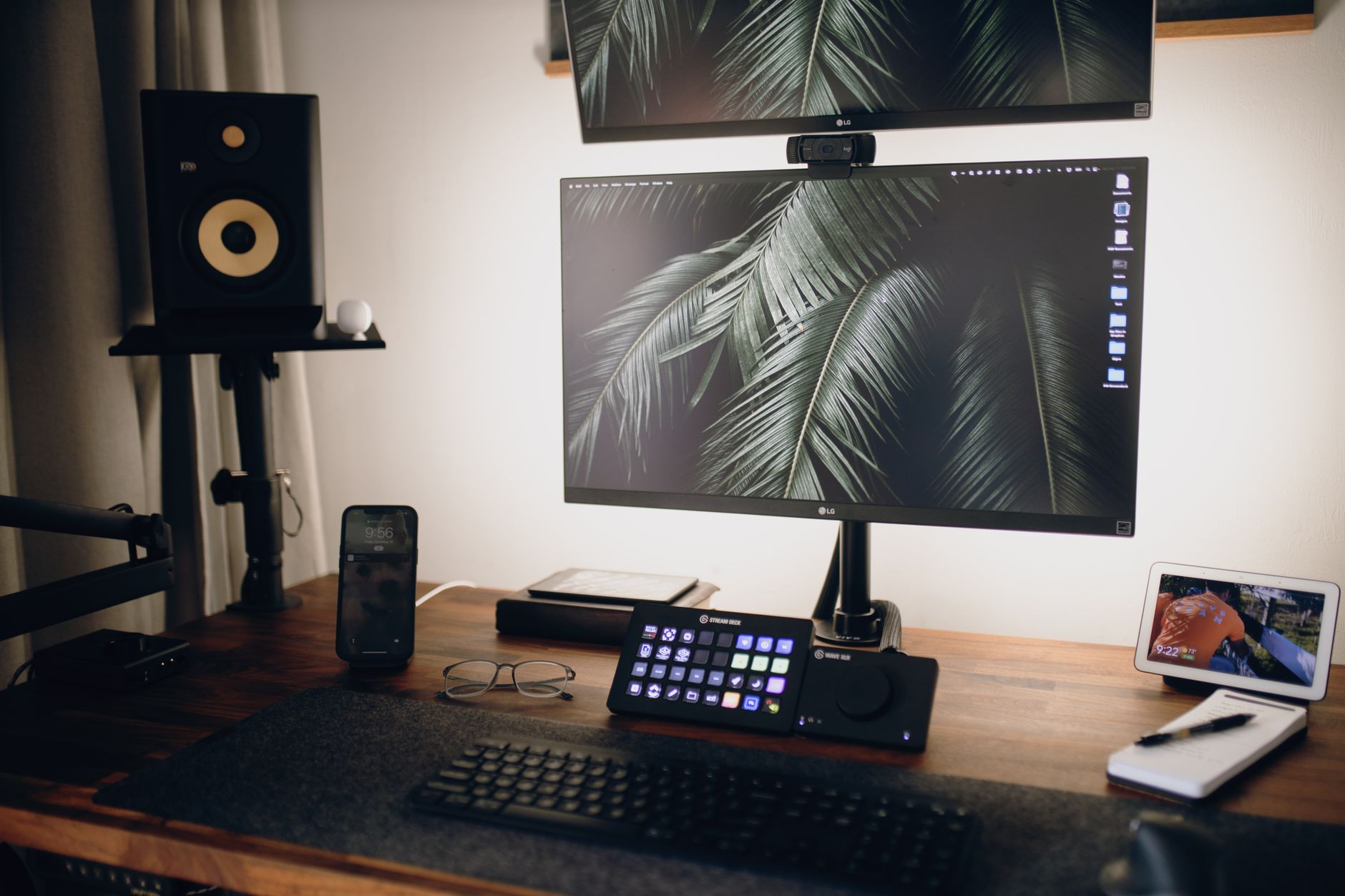
Modern laptops are sleek, portable, and remarkably capable, but their minimalist designs often leave users starved for physical connectivity. When transforming a single laptop into a robust workstation, a multi-display setup is usually at the top of the priority list. Doubling your screen real estate dramatically increases workflow efficiency, whether you are analyzing spreadsheets, editing video timelines, compiling code, or managing several communication channels at once.
Achieving a seamless dual-display configuration without a tangle of individual dongles requires a high-performance USB-C docking station. A single cable can supply power, transmit video signals to multiple screens, connect peripheral accessories, and deliver high-speed wired internet. However, not every dock handles multi-monitor output identically. Factors such as operating system architecture, video bandwidth, host port specifications, and power delivery dictate whether your setup runs smoothly at high refresh rates or falls flat. This comprehensive guide breaks down the best options on the market and the essential technical criteria to help you choose the ideal hub for your desk.
Key Factors to Consider Before Buying a USB-C Docking Station
Before purchasing, it is vital to understand the underlying standards governing USB-C and external displays. USB-C is merely a physical connector shape; the underlying protocols running through that port determine what your laptop can actually achieve.
1. DisplayPort Alt Mode vs. Thunderbolt vs. DisplayLink
There are three primary methods docks use to output video across dual monitors:
- DisplayPort Alternate Mode (DP Alt Mode): Native USB-C video transmission. It taps directly into your computer’s integrated or dedicated graphics card. Bandwidth depends on whether your laptop supports DisplayPort 1.2, 1.4, or DisplayPort 2.1 over USB-C.
- Thunderbolt 3, Thunderbolt 4, and USB4: These high-bandwidth protocols (up to 40Gbps) allow uncompressed dual 4K video signals alongside high-speed data transfer and power delivery through a single connection.
- DisplayLink (Software-Based Graphics): Docks utilizing DisplayLink technology use an internal chipset and universal software drivers to compress and send video over standard USB data lanes. This is the primary method used to bypass hardware display limitations on certain machines.
2. The macOS vs. Windows Multi-Stream Transport (MST) Divide
One of the most frequent points of confusion centers on how operating systems handle multiple external monitors:
- Windows: Fully supports Multi-Stream Transport (MST). A standard USB-C dock with DP Alt Mode can split its video signal across two or three separate external screens in “Extended Desktop” mode.
- macOS: Does not support MST over standard USB-C. If you connect a standard dual-display MST dock to a MacBook, both external monitors will display the exact same mirrored image. To run two independent extended screens on a Mac, you must use either a Thunderbolt dock (on Pro/Max Apple Silicon chips or Intel Macs) or a DisplayLink-powered USB-C docking station (which bypasses the native single-display limit on base M1, M2, and M3 chips).
3. Power Delivery (PD) Capabilities
A capable dock should comfortably power your host laptop while running attached accessories. Look for docks that offer at least 65W Power Delivery for ultrabooks, or 85W to 100W for high-performance laptops. If a dock only provides 45W, your battery may slowly drain under heavy computational loads.
Top USB-C Docking Stations for Dual Monitors
1. CalDigit TS4 (Thunderbolt 4 / USB4) – The Undisputed Premium Choice
The CalDigit TS4 represents the gold standard in desktop expansion. Built on the Thunderbolt 4 protocol, it delivers unmatched bandwidth, rock-solid stability, and an industry-leading port selection that caters to demanding power users and creative professionals.
- Video Ports: 1x DisplayPort 1.4, 2x downstream Thunderbolt 4 / USB-C ports (adaptable to HDMI/DisplayPort via standard cables).
- Max Resolution: Dual 4K at 60Hz (on supported Windows and macOS systems); single display up to 8K at 60Hz.
- Power Delivery: Up to 98W host charging.
- Total Ports: 18 ports, including 2.5GbE Ethernet, UHS-II SD/microSD card slots, and multiple 10Gbps USB-A/USB-C ports.
The TS4 handles simultaneous dual 4K monitors with zero latency or frame drops. Its aluminum chassis serves as a passive heat sink, keeping components cool under heavy sustained loads. While it commands a premium price tag, its broad compatibility with Thunderbolt 3, Thunderbolt 4, and USB4 laptops makes it a future-proof investment.
2. Anker 575 USB-C Docking Station (13-in-1) – Best Overall Value for Windows
For Windows users seeking a dependable, high-utility dock without paying the premium for Thunderbolt hardware, the Anker 575 (Triple Display Dock) strikes an exceptional balance between price and functionality.
- Video Ports: 2x HDMI 2.0, 1x DisplayPort 1.4.
- Max Resolution: Dual 4K at 60Hz on DisplayPort 1.4 (DSC-enabled) Windows laptops; dual 1080p/1440p on older machines.
- Power Delivery: 85W high-speed charging to the laptop via an included 135W DC power adapter.
- Additional Connectivity: Gigabit Ethernet, front-facing USB-C and USB-A data ports, SD card reader, and 3.5mm audio jack.
The Anker 575 uses native MST on Windows to drive two independent displays without requiring proprietary background drivers. Its compact vertical orientation preserves valuable desk space while keeping cable management tidy.
3. Plugable UD-6950PDZ – Best Cross-Platform and Base M-Series Mac Solution
Users who frequently switch between Windows laptops and standard Apple Silicon MacBooks (M1/M2/M3 base models) often struggle to achieve dual independent monitors due to hardware limitations. The Plugable UD-6950PDZ solves this problem entirely using robust DisplayLink architecture.
- Video Ports: 3x HDMI, 3x DisplayPort (arranged in pairs; pick one per channel).
- Max Resolution: Up to three 4K monitors at 60Hz simultaneously across both Windows and macOS.
- Power Delivery: 60W continuous host charging.
- Special Features: Universal software drivers that convert USB data into video, effortlessly bypassing hardware display limits.
Because the UD-6950PDZ relies on DisplayLink software, you can connect two or even three independent 4K screens to a baseline MacBook Air or an entry-level Windows ultrabook. It is an indispensable problem-solver for mixed-device households and modern corporate hot-desking setups.
4. Dell WD19S / WD22TB4 – Best for Enterprise and Heavy-Duty Workstations
Dell has long dominated the enterprise docking market, and its WD series represents some of the most reliable hubs available for high-throughput productivity.
- Video Ports: 2x Full-size DisplayPort 1.4, 1x HDMI 2.0b, 1x USB-C Multi-Function DisplayPort.
- Power Delivery: Up to 90W for non-Dell laptops; up to 130W proprietary Power Delivery for compatible Dell Latitude and Precision models.
- Enterprise Features: MAC address pass-through, PXE boot, and remote Wake-on-LAN management.
The modular design of the Dell WD series allows users to upgrade the interface module down the road if they require Thunderbolt 4 speeds. If your dual-monitor workflow involves massive data backups, high network bandwidth, and rigorous daily use, this commercial-grade dock is engineered for maximum uptime.
Step-by-Step Guide: Setting Up Dual Displays on a USB-C Dock
Once you have selected the appropriate hardware, follow these best practices to ensure an effortless installation:
- Connect the Dock’s Dedicated Power Adapter: Always plug the dock directly into a wall outlet using its included manufacturer power supply before connecting it to your computer.
- Install Necessary Drivers: If your dock uses DisplayLink technology (like the Plugable UD-6950PDZ), download the latest DisplayLink Manager software before plugging in the dock. Native Thunderbolt and MST docks generally require no third-party drivers.
- Connect Video Cables: Attach your two monitors using high-quality HDMI 2.0/2.1 or DisplayPort 1.4 cables. Avoid chaining multiple passive adapters together, as this can degrade video signal integrity.
- Connect the Host Cable: Use the certified USB-C or Thunderbolt cable supplied with your dock to connect to your laptop’s designated charging/video-capable port.
- Configure Display Arrangement:
- Windows: Navigate to Settings > System > Display. Click “Identify” to see screen numbers, drag them to match your physical desk layout, and ensure the drop-down menu is set to “Extend these displays.”
- macOS: Open System Settings > Displays. Click “Arrange” to position your secondary screens relative to your MacBook’s panel.
Troubleshooting Common Dual-Monitor Docking Problems
Even with high-end hardware, configuration quirks can arise. Here is how to quickly resolve the most common dual-monitor issues:
One or Both Monitors Remain Black
Check that your laptop’s USB-C port actually supports video out. Some budget laptops feature USB-C ports wired exclusively for data transfer, lacking DP Alt Mode or charging support. Look for a small DisplayPort logo (a stylized “D”) or a lightning bolt next to the port.
Display Resolution is Capped at 1080p or 30Hz
This typically occurs when total bandwidth is constrained. If your laptop only supports the older DisplayPort 1.2 standard over USB-C, driving two high-resolution screens forces the system to drop refresh rates or lower resolution to fit the bandwidth pipe. Upgrading to a Thunderbolt-based connection or lowering display refresh rates in your operating system settings can restore proper functionality.
Screen Flickers Intermittently
Intermittent screen blanking is usually caused by insufficient power or signal degradation. Ensure your dock is not running off passive bus power, update your computer’s graphics drivers, and replace older display cables with certified 4K-rated cords.
Final Recommendations
Investing in a high-caliber USB-C docking station transforms your mobile computer into an organized, high-efficiency workstation. If you demand top-tier speeds, native refresh rates, and unmatched port diversity, the CalDigit TS4 is worth every penny. For general Windows users, the Anker 575 offers the best balance of features and cost. Meanwhile, macOS users looking to bypass hardware multi-monitor limitations will find an ideal match in the Plugable UD-6950PDZ.
Looking to optimize your personal workflow and workstation tech? Explore our other articles in the General category for in-depth hardware reviews, workspace guides, and productivity tutorials.