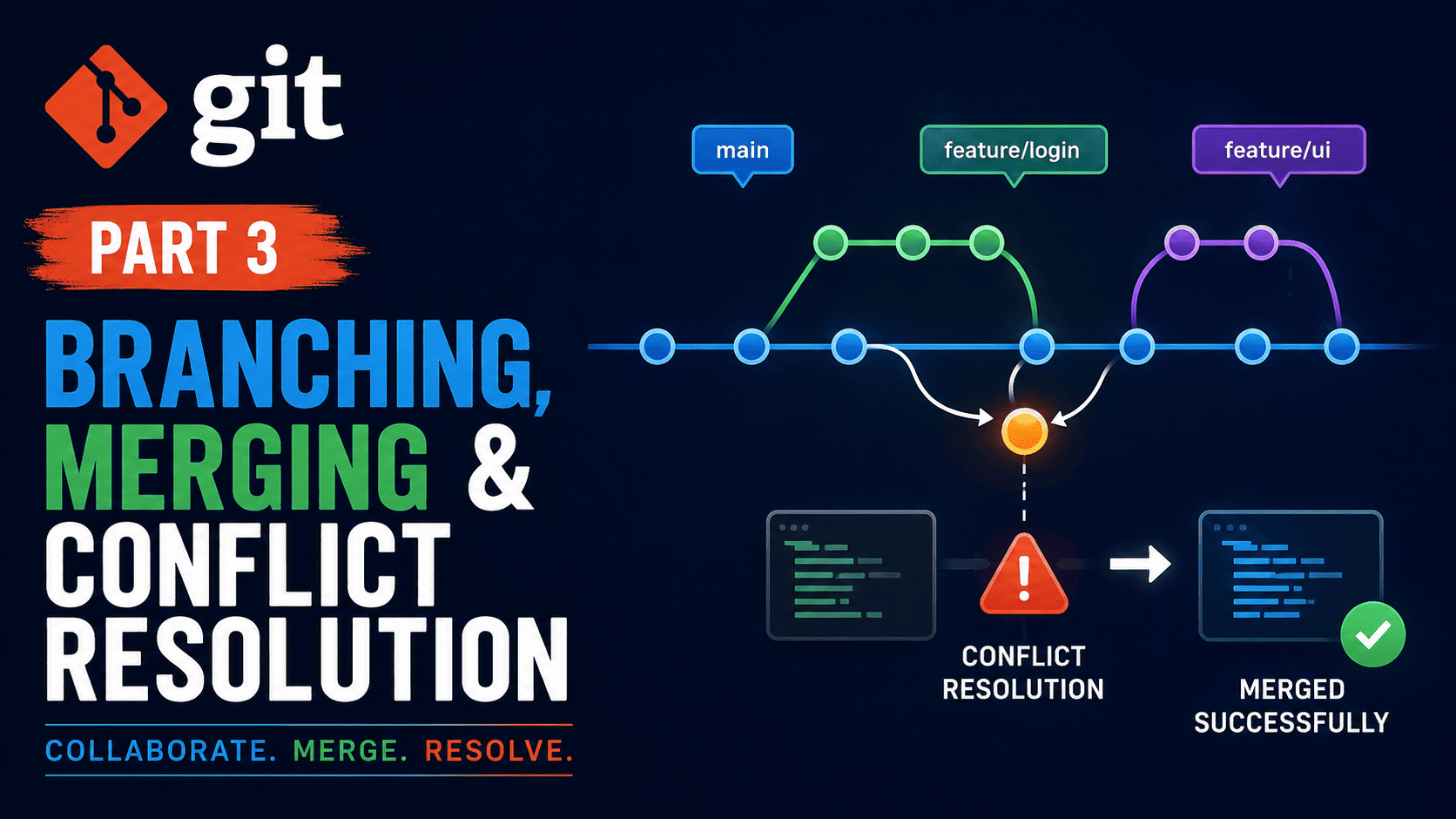
Welcome back to Techie Tweetz! Whether you are following along with our four-part Git masterclass or dropping in for the first time, this guide will give you complete control over one of version control’s most essential workflows: git branching. In the earlier entries of this series, we explored core repository setup and basic commit tracking. In this third installment, we elevate your daily development workflow by diving deep into branch creation, code merging, and modern conflict resolution techniques. You do not need to have read the previous articles to follow along—everything in this tutorial is structured to be standalone, practical, and immediately applicable to your projects.
Branching is often described as the single best feature of Git. Older version control systems like SVN made branching expensive, slow, and disk-intensive. Git, on the other hand, turned branching into a lightweight, near-instantaneous action. Mastering effective git branching allows you to experiment freely, isolate new features, fix critical production bugs, and collaborate with team members without stepping on anyone’s toes.
Understanding Git Branching Under the Hood
To truly master git branching, it helps to understand what a branch actually is inside Git’s internal architecture. Many developers assume a branch is a full copy of the codebase stored in a separate directory. In reality, a Git branch is nothing more than a lightweight, movable pointer to a specific commit.
When you create a commit in Git, Git creates a data structure that stores the state of your files, author metadata, and a reference to the parent commit that came directly before it. When you create a branch, Git simply creates a tiny 41-byte text file containing a 40-character SHA-1 hash pointing to that same commit. Because creating or moving a branch is just writing a hash to a small file, git branching operations take only a fraction of a millisecond, regardless of how large your project repository is.
Git maintains a special pointer called HEAD. The HEAD pointer tells Git which branch and commit you are currently working on. When you run commands to create or switch branches, you are simply moving the HEAD pointer to track a different reference point in your repository’s history graph.
Essential Commands for Effective Git Branching
Working efficiently with branches requires familiarity with a handful of core terminal commands. While modern Git graphic interfaces (GUIs) provide visual buttons, knowing the command-line interface ensures you can manage repositories on remote servers, inside CI/CD pipelines, and across any environment.
1. Creating and Viewing Branches
To view all local branches in your repository, run the basic branch command:
git branchThe output will list all existing local branches, placing an asterisk next to the branch where your HEAD pointer currently resides. To list both local and remote-tracking branches, use the -a flag:
git branch -aTo create a new branch without switching to it, pass your desired branch name to the command:
git branch feature/user-authentication2. Switching Between Branches
Historically, developers used git checkout to switch branches. However, Git 2.23 introduced git switch, a dedicated command that makes working with git branching clearer and less prone to mistakes:
git switch feature/user-authenticationIf you want to create a brand-new branch and immediately switch to it in a single command, use the -c (create) flag with git switch, or the classic -b flag with git checkout:
git switch -c feature/payment-gatewaygit checkout -b feature/payment-gateway3. Deleting and Cleaning Up Branches
Once a feature branch has been successfully merged into your main codebase, it is good practice to delete it to keep your repository clean and readable. To safely delete a branch that has already been merged, run:
git branch -d feature/payment-gatewayIf you created a branch for quick experimentation and want to discard it along with all unmerged changes, Git will prevent safe deletion. To force deletion of an unmerged branch, use the uppercase -D flag:
git branch -D feature/experimental-ideaBranch Naming Conventions and Best Practices
Adopting consistent naming conventions across your team makes large repositories manageable and understandable. Random branch names like test1 or john-fix create confusion over time. Instead, use structured prefix categories separated by forward slashes:
- feature/: Used for developing new application capabilities (e.g.,
feature/shopping-cart). - bugfix/: Used for fixing issues found during standard QA testing (e.g.,
bugfix/header-alignment). - hotfix/: Used for urgent patches targeted directly at production environments (e.g.,
hotfix/security-patch-login). - release/: Used when preparing code for a planned production release version (e.g.,
release/v2.1.0). - chore/: Used for non-application code changes, such as dependency updates or CI updates (e.g.,
chore/update-dependencies).
Merging Branches: Fast-Forward vs. Three-Way Merges
Creating isolated lines of development through git branching is only half the workflow. Eventually, you need to bring those changes back together into your primary integration branch (usually named main or master). This process is known as merging.
To merge code, you first switch to the destination branch where you want the changes to end up, then execute the git merge command referencing the source branch:
git switch main
git merge feature/user-authentication
When executing a merge, Git automatically determines which algorithm strategy to apply based on the structure of your commit history graph.
Fast-Forward Merges
A fast-forward merge occurs when no new commits have been made on the destination branch since you initially branched off from it. In this scenario, the history has not diverged. Git simply advances the branch pointer forward to match the latest commit on your feature branch. No extra merge commit is created because the history remains completely linear.
While fast-forward merges keep commit histories clean, some teams prefer to disable them using the --no-ff flag. Forcing a dedicated merge commit preserves explicit historical records showing when a feature branch was introduced and merged:
git merge --no-ff feature/user-authenticationThree-Way Merges
A three-way merge occurs when both the destination branch and your feature branch have received new commits independently since the initial branching point. In this scenario, a simple pointer fast-forward is impossible because the commit history has diverged into two separate paths.
To perform a three-way merge, Git analyzes three distinct commits:
- The common ancestral commit where the branches originally split.
- The latest commit on the destination branch (e.g.,
main). - The latest commit on the feature branch.
Git automatically combines the edits from both branches and creates a special multi-parent commit called a merge commit. As long as the changes on both branches occurred in different files or different lines of the same file, Git combines them automatically without requiring manual user intervention.
Demystifying and Resolving Merge Conflicts
While Git’s automatic three-way merge engine handles most scenarios effortlessly, it encounters a boundary when two branches modify the exact same lines of code in conflicting ways, or when one branch deletes a file that another branch edits. When Git cannot automatically determine which set of changes is correct, it pauses the merge process and reports a merge conflict.
Merge conflicts can feel intimidating to beginners, but they are completely normal. Resolving them is a straightforward, systematic process.
1. Identifying the Conflict
When a conflict occurs during a merge operation, Git halts the merge and prints a message identifying the affected files:
Auto-merging src/app.js
CONFLICT (content): Merge conflict in src/app.js
Automatic merge failed; fix conflicts and then commit the result.
To inspect all files currently suffering from unresolved conflicts, run:
git statusFiles with conflicts will be clearly listed under the heading “Unmerged paths”.
2. Understanding Git Conflict Markers
When you open a conflicted file in your text editor, Git inserts standard conflict markers directly into the file’s source code to highlight the differing lines:
<<<<<<< HEAD
const apiEndpoint = "https://api.staging.example.com";
=======
const apiEndpoint = "https://api.production.example.com";
>>>>>>> feature/payment-gateway
Understanding these markers is key to resolving conflicts quickly:
<<<<<<< HEAD: Marks the start of the conflicting section, showing the code currently existing on your target branch (the branch you are currently on).=======: The divider line separating the two conflicting versions of code.>>>>>>> feature/payment-gateway: Marks the end of the conflict section, showing the code coming from the branch you are attempting to merge in.
3. Resolving the Conflict Step-by-Step
To fix the merge conflict, follow these four simple steps:
- Open the affected file(s) in your text editor or IDE.
- Manually edit the code to reflect the exact desired final state. Remove both incorrect code lines and all Git conflict marker tags (
<<<<<<<,=======,>>>>>>>). - Save the edited file.
- Stage the resolved file using
git add:
git add src/app.jsAfter staging all resolved files, finalize the merge process by running a standard commit without arguments:
git commitGit will open your terminal’s default text editor with a pre-populated merge commit message. Save and close the editor to complete the merge.
Aborting a Broken Merge
If you encounter a complicated set of conflicts during a merge and need to revert back to your clean starting point before the merge began, you can instantly safely abort the operation using:
git merge --abortThis command safely resets your working directory and local branch back to the exact state it was in right before you invoked the merge command.
Popular Real-World Git Branching Workflows
Now that you understand how to switch, combine, and fix branches, let’s look at how engineering teams structure their git branching patterns in professional software environments.
Feature Branch Workflow
In the Feature Branch Workflow, all new development work takes place in short-lived feature branches created off the primary branch (usually main). Developers complete their work locally or push to remote repositories, open pull requests for team review, and merge back into main once approved. This keeps unstable, unreviewed code away from the primary branch.
Trunk-Based Development
Favored by high-velocity cloud engineering teams and organizations practicing Continuous Integration (CI), Trunk-Based Development emphasizes short-lived branches that last no longer than a day or two. Developers frequently pull updates and merge small, incremental changes directly back into the primary trunk branch (main). Feature flags are often used to hide incomplete features in production while avoiding large, painful merge conflicts down the line.
Gitflow Workflow
Gitflow is a highly structured branching model ideal for software products that maintain strict release cycles and versioning. It uses multiple long-lived branches, including main for production code, develop for ongoing feature integration, alongside dedicated temporary branches for feature/ development, planned release/ prep, and urgent production hotfix/ patches.
Summary and What’s Next
Effective git branching and disciplined merging strategies form the backbone of modern collaborative software engineering. By understanding how Git represents branches as lightweight commit pointers, using modern commands like git switch, and knowing how to read and clear conflict markers, you can tackle complex project workflows with total confidence.
This concludes Part 3 of our four-part Git masterclass series! In our upcoming final installment—Part 4—we will take these skills to the cloud by exploring remote repositories, pushing/pulling strategies, interactive rebase, and professional GitHub pull request collaborative workflows. If you enjoyed this tutorial, be sure to check out our other technical guides and modern tutorials in the General tech section here on Techie Tweetz!