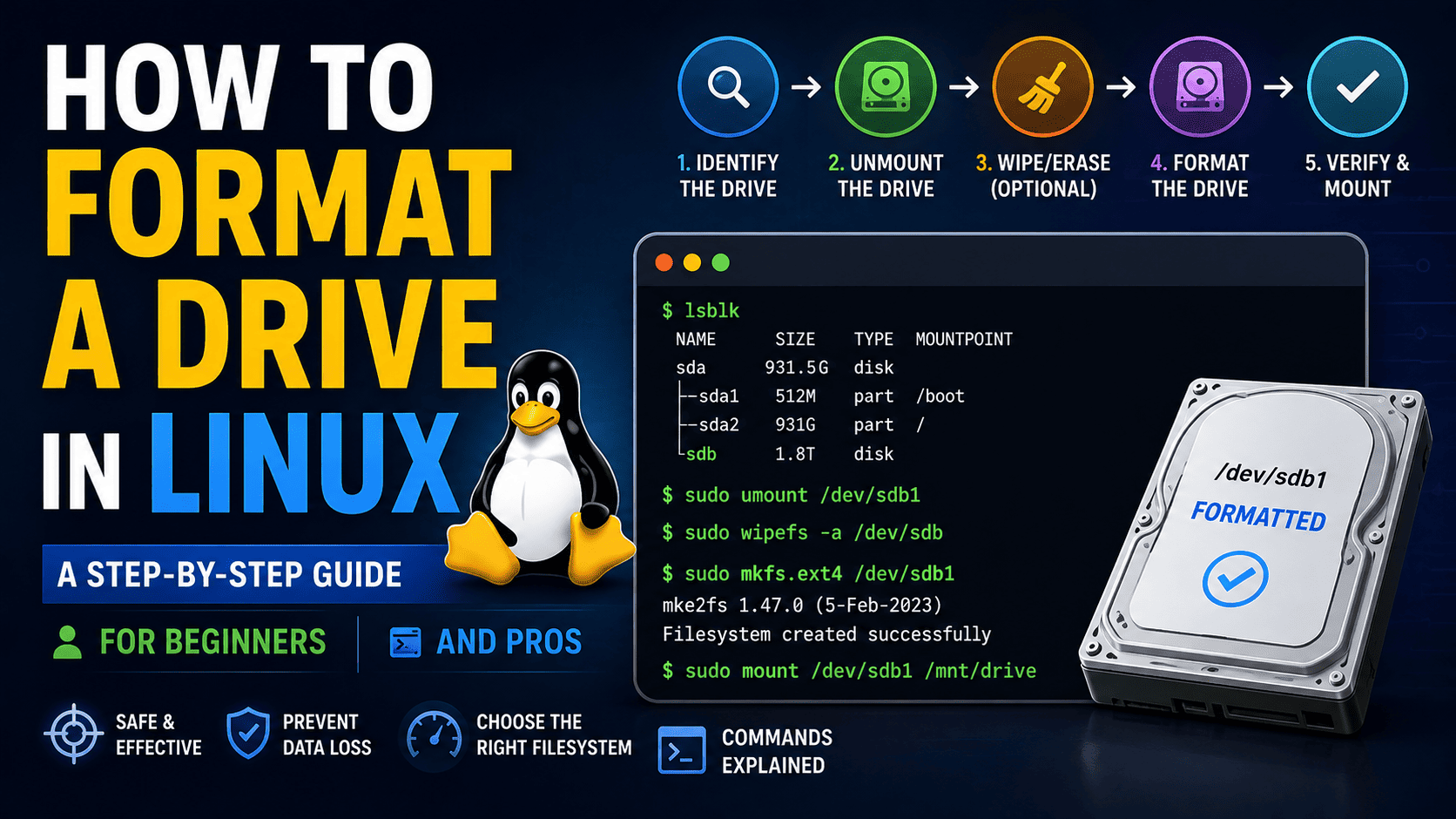
Whether you are setting up a brand-new Solid State Drive (SSD), repurposing an old USB flash drive, or preparing a hard drive to serve as a backup storage unit, knowing how to format drive Linux devices properly is a fundamental skill. Linux offers a powerful suite of tools that give you absolute control over your storage media. However, because formatting completely wipes existing data, it is crucial to understand the process clearly before typing commands into your terminal.
In this comprehensive guide, we will walk you through the process to format drive linux targets safely and efficiently. We will cover both the command-line interface (CLI) for those who prefer the speed and precision of the terminal, and graphical user interfaces (GUI) for users who appreciate visual confirmation. Additionally, we will explain how to choose the right filesystem for your specific needs, how to partition your drive, and how to verify that the format was successful.
Understanding Linux Filesystems: Which One Should You Choose?
Before you run a formatting command, you must decide which filesystem to write to your storage medium. Unlike some operating systems that restrict you to one or two options, Linux supports a wide array of filesystems, each optimized for different use cases:
- Ext4 (Fourth Extended Filesystem): This is the default filesystem for most modern Linux distributions. It is incredibly stable, supports massive file and volume sizes, and includes journaling to prevent data corruption in the event of a sudden power loss. Choose Ext4 if the drive will only be used on Linux systems.
- NTFS (New Technology File System): Developed by Microsoft, NTFS is the standard filesystem for Windows. Linux can read and write to NTFS drives easily using the ntfs-3g driver. Choose NTFS if you need to share a high-capacity external hard drive between Linux and Windows machines.
- FAT32 / vFAT: This is an older filesystem format that is supported by almost every operating system, media player, game console, and smart TV on the planet. Its primary limitation is that it cannot store individual files larger than 4GB. Choose FAT32 for small USB flash drives (under 32GB) that require maximum compatibility across different devices.
- exFAT (Extended File Allocation Table): Designed by Microsoft to replace FAT32, exFAT removes the 4GB file size limit while maintaining excellent cross-platform compatibility. It is widely used for modern SD cards and external SSDs. Choose exFAT for large external drives that will move between Linux, macOS, and Windows.
- Btrfs and XFS: These are advanced filesystems designed for high-performance servers, enterprise environments, and specific storage arrays. They support advanced features like snapshots and dynamic storage pooling, but they are generally overkill for standard desktop drives.
Safety First: Always Backup Your Data
It cannot be stressed enough: formatting is a destructive process. When you format a drive, you destroy the file allocation table that tells the operating system where your files are located. While data recovery is sometimes possible, you should assume that everything on the target drive will be lost forever. Always double-check that you have backed up any critical files to a separate physical drive or cloud storage before proceeding.
Method 1: How to Format a Drive in Linux via Command Line (CLI)
Using the Linux command line is the most reliable, universal, and powerful way to format a drive. It works on headless servers, over SSH connections, and on any distribution regardless of the desktop environment. Follow these step-by-step instructions carefully.
Step 1: Identify Your Drive
The most critical step in formatting via the command line is identifying the correct device identifier. In Linux, drives are represented as files inside the /dev/ directory (e.g., /dev/sda, /dev/sdb, /dev/nvme0n1). Formatting the wrong device (like your primary boot drive) will destroy your operating system.
To view all connected storage drives, open your terminal and run the following command:
lsblkThe lsblk (list block devices) command prints a clean, easy-to-read tree view of your storage devices, their partitions, and their sizes. Look for your target drive by comparing its physical capacity (e.g., 119.2G or 14.9G) to your device. Note down the name of the drive (for example, sdb) and its partitions (such as sdb1).
You can also use the fdisk tool for a more detailed technical overview:
sudo fdisk -lThis command lists all disks, partition tables, and filesystem types. Locate your drive path, which will look like /dev/sdb or /dev/sdc.
Step 2: Unmount the Drive
Linux will not allow you to format a drive or partition that is currently mounted and in use by the system. If your file manager automatically mounted the drive when you plugged it in, you must unmount it first.
Run the umount command followed by the partition identifier. Replace “/dev/sdb1” with your specific partition name:
sudo umount /dev/sdb1If the terminal returns an error stating that the device is busy, make sure you do not have any open terminal windows, file managers, or applications accessing files on that drive.
Step 3: Create a Partition Table and Partition (Optional)
If you are working with a brand-new drive, or if you want to wipe the partition structure entirely, you should create a new partition table and write a new partition to the disk. We can use the parted utility for this.
To open the drive in parted, type (replace /dev/sdb with your actual drive):
sudo parted /dev/sdbOnce inside the parted interactive prompt, create a modern GPT partition table:
(parted) mklabel gptNext, allocate the space. To create a single partition that spans the entire drive, run:
(parted) mkpart primary ext4 0% 100%Type “quit” to exit the parted program. You will now have a partition named /dev/sdb1 ready for formatting.
Step 4: Format the Drive with Your Chosen Filesystem
Now that your target partition is unmounted and properly identified, you can use the appropriate mkfs (make filesystem) tool to format it. Choose one of the commands below depending on the filesystem you want.
To format as Ext4 (Best for Linux-only systems):
sudo mkfs.ext4 -L "MyLinuxDrive" /dev/sdb1The -L flag allows you to assign a text label to the volume, making it easy to recognize in your file manager.
To format as FAT32 (Best for small, universal USB drives):
sudo mkfs.vfat -F 32 -n "USB_DRIVE" /dev/sdb1The -n flag is used here to assign a volume label to FAT32 systems.
To format as NTFS (Best for Windows/Linux sharing):
sudo mkfs.ntfs -L "WindowsShare" /dev/sdb1To format as exFAT (Best for large cross-platform external drives):
sudo mkfs.exfat -n "ExternalSSD" /dev/sdb1Wait for the command to finish. Depending on the size of the drive, the speed of the storage interface, and the filesystem chosen, this process can take anywhere from a couple of seconds to several minutes.
Step 5: Verify the Format
Once the mkfs process is complete, verify that the drive has been formatted with the correct filesystem by running:
lsblk -fThis will display your block devices along with their assigned filesystems (under the FSTYPE column) and labels, confirming that the format was successful.
Method 2: How to Format a Drive in Linux via GUI Tools
If you prefer a visual approach, Linux offers excellent graphical partition managers. The two most popular tools are GNOME Disks and GParted.
Option A: Using GNOME Disks
GNOME Disks is the default utility on Ubuntu, Fedora, Debian (GNOME), and many other desktop environments. It is clean, simple, and very user-friendly.
- Open your application menu, search for Disks, and launch the utility.
- In the left-hand sidebar, click on the drive you wish to format. Take note of its size and model to ensure it is the correct device.
- In the main panel, click on the specific partition you want to format.
- Click the gears icon (Additional partition options) below the partition map and select Format Partition…
- In the dialog box that appears, enter a volume name.
- Select your preferred filesystem type (e.g., Ext4, NTFS, or FAT/exFAT).
- Click Next, review the warning screen, and click Format to execute the task.
Option B: Using GParted
GParted is a highly regarded, full-featured partition editor available on almost all Linux distributions. If it is not pre-installed, you can install it via your terminal (e.g., sudo apt install gparted on Ubuntu/Debian).
- Launch GParted from your application menu. You will be prompted to enter your administrator password.
- In the top-right corner of the window, select your target drive from the dropdown menu (e.g., /dev/sdb).
- Right-click on the partition you want to change, and select Unmount if it is currently mounted.
- Right-click the partition again, hover over Format to, and select your target filesystem (ext4, ntfs, fat32, exfat, etc.).
- Click the green checkmark icon in the main toolbar (labeled “Apply All Operations”).
- Confirm the prompt by clicking Apply. GParted will execute the formatting safely and show a progress window.
Advanced Formatting: Wiping a Drive Securely Before Formatting
If you are planning to sell, donate, or recycle your old hard drive or SSD, a standard format is not enough to protect your personal data. Standard formatting leaves raw data on the physical platters or flash cells, which can easily be recovered using forensic software.
To securely wipe your drive before writing a fresh filesystem, you can use the dd utility to overwrite the entire drive with zeros or random data. Note that this process can take several hours on larger disks.
To overwrite your entire drive with random data, run:
sudo