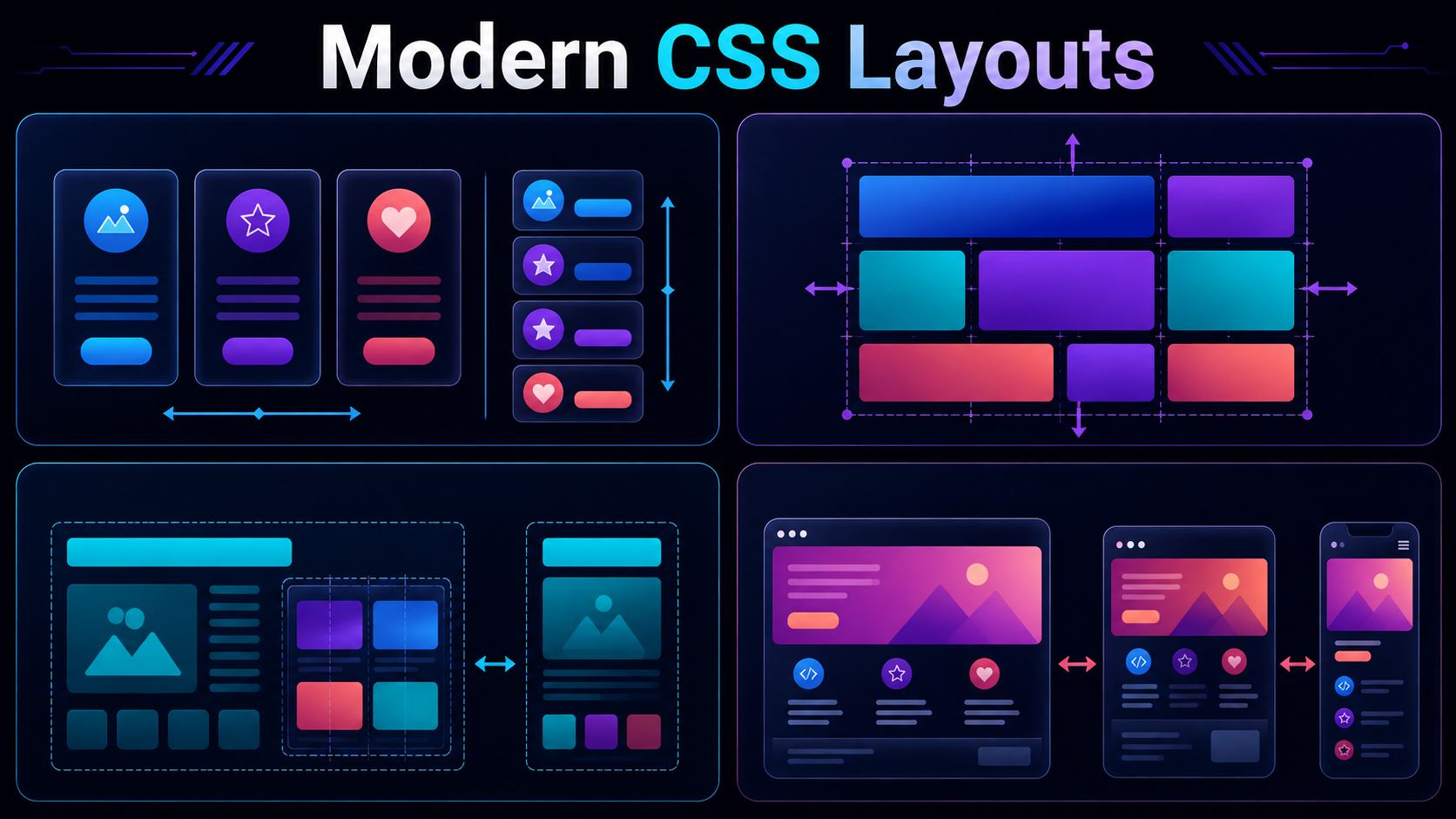
Welcome back to our series on mastering modern web design! In Part 1, we explored the wonders of Flexbox and how it revolutionized one-dimensional layout design. Today, we are taking a massive leap forward into Part 2 of our four-part series. We are diving deep into the absolute powerhouse of modern web design: the CSS grid.
While Flexbox remains the go-to choice for laying out elements along a single axis, the CSS grid is designed for the complex, two-dimensional layouts that modern web interfaces demand. Whether you are building a dense editorial magazine layout, a complex SaaS dashboard, or a clean bento-box portfolio, CSS grid gives you complete control over both columns and rows simultaneously.
The best part? You do not need to have read Part 1 to follow along with this guide. We will cover the core fundamentals from the ground up, explore the magic of two-dimensional alignment, and look at practical examples you can start using in your stylesheets today.
CSS Grid vs. Flexbox: Understanding the 2D Difference
Before writing any code, it is crucial to understand when and why you should choose a CSS grid layout over a Flexbox layout. The distinction comes down to design direction:
- Flexbox is one-dimensional: It handles layout control along a single axis at a time—either horizontally (rows) or vertically (columns). If elements wrap to a new line in Flexbox, they do so independently of the elements on the line above them.
- CSS Grid is two-dimensional: It establishes a strict grid system of intersecting columns and rows. When you place an item in a CSS grid, it aligns with both its vertical column and its horizontal row, maintaining a unified structure across the entire layout.
If you need to align items neatly in both directions, or if you want to control the overall layout structure from the parent container rather than setting widths on individual child elements, the CSS grid is your best tool.
The Anatomy of a CSS Grid
To write CSS grid code with confidence, you must first understand the vocabulary of the grid system. Let’s break down the core concepts:
- Grid Container: The parent element on which you apply
display: grid;. This establishes the grid formatting context for its direct children. - Grid Items: The direct children of the Grid Container. Only direct children become grid items; deeply nested elements do not automatically inherit grid placement rules.
- Grid Tracks: The space between any two adjacent grid lines. Simply put, these are your columns and rows.
- Grid Lines: The horizontal and vertical dividing lines that separate the grid tracks. They are numbered starting from 1 at the top-left corner of your grid.
- Grid Cell: The smallest individual unit of a grid, formed by the intersection of one row track and one column track (similar to a single cell in a spreadsheet).
- Grid Area: Any rectangular space bounded by four grid lines. A grid area can consist of a single grid cell or span across multiple cells.
Defining Your First Grid: Columns, Rows, and the FR Unit
Creating a grid begins by defining a container and telling browser engines how many columns and rows you want. We do this using the properties grid-template-columns and grid-template-rows.
Let’s look at a basic example where we define a layout with three columns and two rows:
.grid-container {
  display: grid;
  grid-template-columns: 200px 200px 200px;
  grid-template-rows: 100px 100px;
  gap: 20px;
}
This code establishes a rigid layout where every column is exactly 200 pixels wide and every row is 100 pixels tall. The gap property (previously known as grid-gap) defines a 20-pixel spacing between the rows and columns, keeping our content from crashing into itself.
While absolute values like pixels have their place, modern web layouts need to be flexible. This is where the fractional unit (fr) comes in. The fr unit represents a fraction of the available free space in the grid container.
Consider this more flexible layout:
.flexible-grid {
  display: grid;
  grid-template-columns: 1fr 2fr 1fr;
  gap: 15px;
}
In this example, the grid container splits the available horizontal space into 4 equal portions (1 + 2 + 1 = 4). The first column gets 1/4 of the space, the middle column gets 2/4 (half) of the space, and the final column gets the remaining 1/4. This ensures that no matter how wide the browser window becomes, the proportions remain perfectly intact.
Streamlining Grid Syntax: repeat() and minmax()
Writing out multiple column sizes can quickly become tedious, especially if you are building a grid with twelve identical columns. Fortunately, CSS grid provides the highly efficient repeat() function.
Instead of writing grid-template-columns: 1fr 1fr 1fr 1fr;, you can simply write:
.efficient-grid {
  display: grid;
  grid-template-columns: repeat(4, 1fr);
}
To take responsiveness a step further, we can pair repeat() with the minmax() function. The minmax() function defines a size range greater than or equal to a minimum value and less than or equal to a maximum value.
.responsive-grid {
  display: grid;
  grid-template-columns: repeat(auto-fit, minmax(250px, 1fr));
  gap: 20px;
}
This single line of CSS is one of the most powerful tricks in modern web design. By combining auto-fit with minmax(250px, 1fr), the browser will automatically calculate how many 250px columns can fit into the container. If there is extra space, the columns will stretch equally to fill it. If the container shrinks, the columns will dynamically wrap without requiring a single media query!
Placing Grid Items Explicitly
By default, the browser places grid items into the grid tracks automatically based on the source order in your HTML. However, you can explicitly position any grid item anywhere on the grid using grid line numbers.
Remember that grid lines start at 1. In a three-column grid, there are four vertical grid lines. Let’s look at how we can stretch an item across multiple columns:
.hero-feature {

  grid-column-start