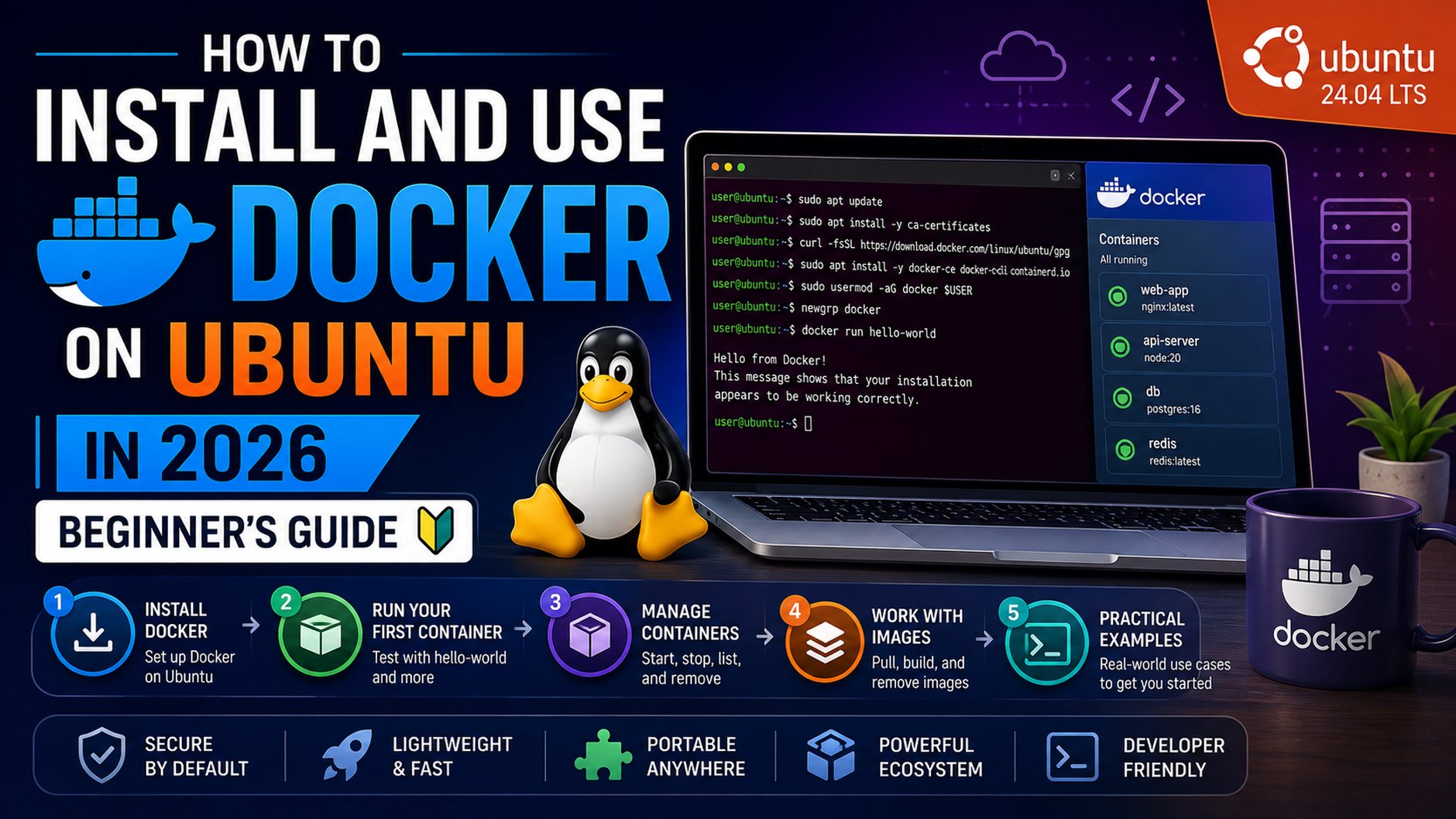
Docker has completely changed the way developers build, ship, and run applications. Whether you’re a beginner or an experienced developer, Docker is one of the most valuable tools you can add to your skill set in 2026.
In this guide, we’ll walk you through how to install Docker on Ubuntu step by step, and show you how to use it with real-world examples.
What is Docker?
Docker is an open-source platform that allows you to package applications into containers — lightweight, portable environments that run consistently across any system.
Think of a container as a box that contains everything your app needs to run:
- The application code
- Runtime environment
- Libraries and dependencies
- Configuration files
This means your app will run the same way on your laptop, your server, and in the cloud — no more “it works on my machine” problems!
Prerequisites
Before we begin, make sure you have:
- Ubuntu 20.04, 22.04, or 24.04 installed
- A user account with sudo privileges
- Basic familiarity with the terminal
Step 1 — Update Your System
First, update your package list to make sure everything is up to date:
sudo apt update && sudo apt upgrade -y
This ensures you have the latest security patches and package versions before installing Docker.
Step 2 — Install Required Dependencies
Install the packages needed for Docker installation:
sudo apt install apt-transport-https ca-certificates curl software-properties-common -y
These packages allow your system to download packages over HTTPS securely.
Step 3 — Add Docker’s Official GPG Key
Add Docker’s official GPG key to verify package authenticity:
curl -fsSL https://download.docker.com/linux/ubuntu/gpg | sudo gpg --dearmor -o /usr/share/keyrings/docker-archive-keyring.gpg
Step 4 — Add Docker Repository
Add the official Docker repository to your system:
echo "deb [arch=$(dpkg --print-architecture) signed-by=/usr/share/keyrings/docker-archive-keyring.gpg] https://download.docker.com/linux/ubuntu $(lsb_release -cs) stable" | sudo tee /etc/apt/sources.list.d/docker.list > /dev/null
Step 5 — Install Docker
Now update the package list and install Docker:
sudo apt update
sudo apt install docker-ce docker-ce-cli containerd.io -y
Step 6 — Verify Docker Installation
Check that Docker was installed correctly:
sudo docker --version
You should see something like:
Docker version 26.x.x, build xxxxxxx
Step 7 — Run Docker Without Sudo (Optional but Recommended)
By default, Docker requires sudo. Add your user to the Docker group to run it without sudo:
sudo usermod -aG docker $USER
newgrp docker
Now verify it works without sudo:
docker run hello-world
You should see a “Hello from Docker!” message — this confirms Docker is working correctly! ✅
Basic Docker Commands
Now that Docker is installed, here are the most important commands to get started:
Pull an Image
docker pull ubuntu
Downloads the Ubuntu image from Docker Hub.
Run a Container
docker run -it ubuntu bash
Runs an interactive Ubuntu container with a bash shell.
List Running Containers
docker ps
List All Containers
docker ps -a
Stop a Container
docker stop container_id
Remove a Container
docker rm container_id
List Images
docker images
Remove an Image
docker rmi image_name
Your First Dockerfile
A Dockerfile is a script that defines how to build a Docker image. Here’s a simple example for a Node.js app:
# Use official Node.js image
FROM node:18-alpine

# Set working directory
WORKDIR /app

# Copy package files
COPY package*.json ./

# Install dependencies
RUN npm install

# Copy app source
COPY . .

# Expose port
EXPOSE 3000

# Start the app
CMD ["node", "index.js"]
Build your image:
docker build -t my-node-app .
Run your container:
docker run -p 3000:3000 my-node-app
Docker Compose — Running Multiple Containers
Docker Compose allows you to define and run multi-container applications. Install it with:
sudo apt install docker-compose-plugin -y
Here’s a simple docker-compose.yml for a WordPress site:
version: '3'
services:
  db:
    image: mysql:8.0
    environment:
      MYSQL_ROOT_PASSWORD: rootpassword
      MYSQL_DATABASE: wordpress
  wordpress:
    image: wordpress:latest
    ports:
      - "8080:80"
    environment:
      WORDPRESS_DB_HOST: db
      WORDPRESS_DB_PASSWORD: rootpassword
Run it with:
docker compose up -d
Visit http://localhost:8080 to see your WordPress site running in Docker! 🚀
Common Docker Issues and Fixes
Permission denied error:
sudo chmod 666 /var/run/docker.sock
Docker service not running:
sudo systemctl start docker
sudo systemctl enable docker
Low disk space from old images:
docker system prune -a
Final Thoughts
Docker is an essential tool for modern software development. Once you get comfortable with containers, you’ll wonder how you ever worked without them.
Key takeaways:
- Docker packages apps into portable containers
- Images are templates, containers are running instances
- Docker Compose manages multi-container apps
- Use
docker system pruneregularly to free up space
What will you containerize first? Let us know in the comments! 👇
Found this guide helpful? Check out our Linux & Ubuntu category for more tutorials like this!