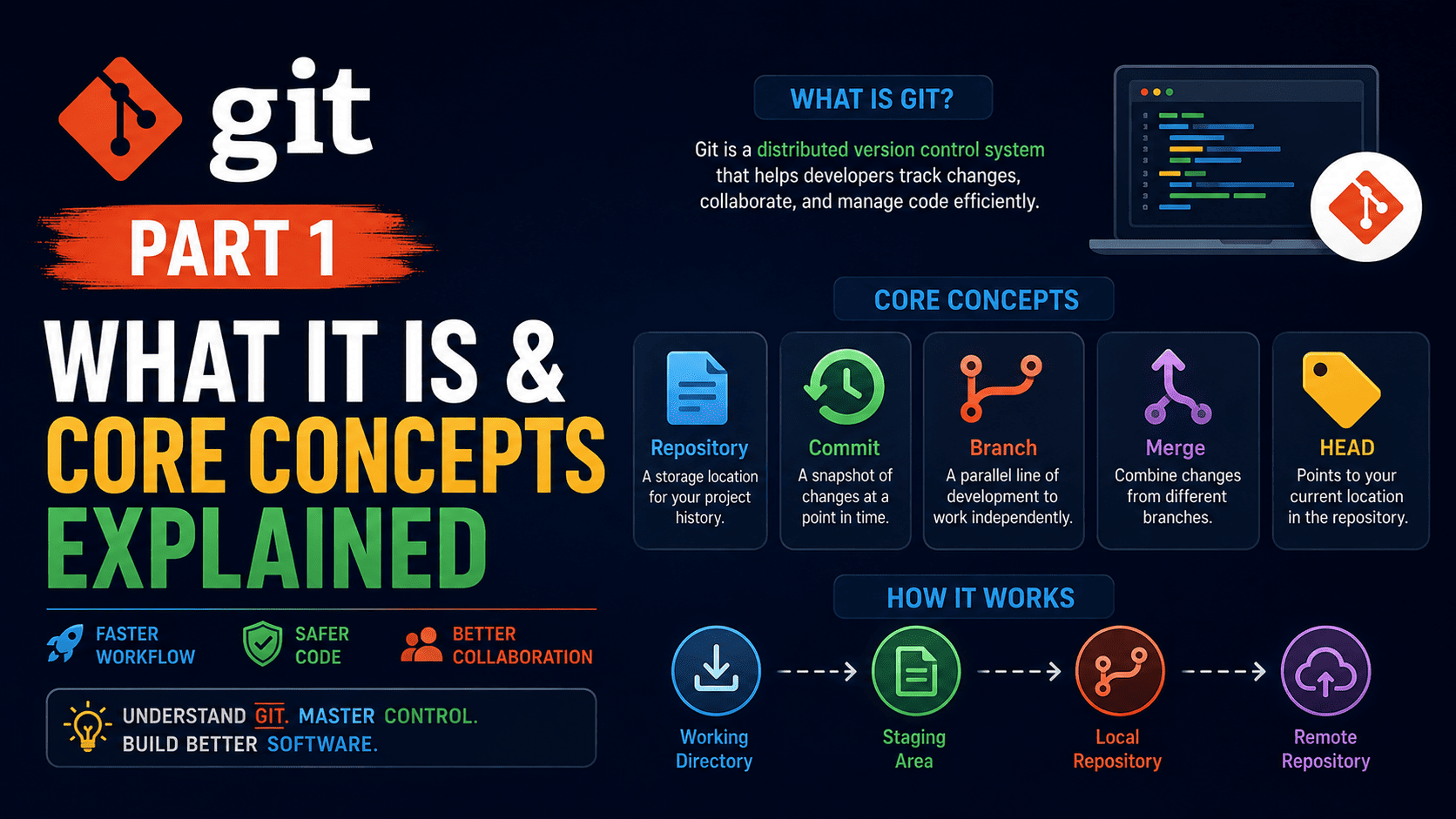
Welcome to Part 1 of our four-part comprehensive guide on Git! Whether you are a total beginner taking your first steps into software engineering, a designer collaborating with developers, or an experienced tech professional looking to solidify your mental model, this article covers everything you need to know. While this piece serves as the entry point to our multi-part series, it is fully self-contained, meaning you can read it today without needing any prior knowledge.
What Is Git? A Plain-English Definition
To answer the fundamental question—what is git?—we need to look at how software projects grow over time. At its core, Git is a free, open-source distributed version control system (DVCS) designed to track changes in computer files, particularly source code, over time. Created in 2005 by Linus Torvalds (the legendary creator of the Linux operating system kernel), Git was engineered to handle everything from small hobby projects to massive, multi-million-line codebases with speed, efficiency, and data integrity.
Without a version control system, managing code changes is a nightmare. You might recall creating folders on your desktop named Project_v1, Project_v2_final, and Project_v2_final_REALLY_FINAL. This manual approach is error-prone, impossible to scale when working with a team, and offers no safe way to undo mistakes. Git solves this problem completely. It acts as an intelligent, supercharged timeline for your project, recording every change made to your files so you can recall specific versions at any time, see who wrote what code, and safely experiment with new ideas without breaking working code.
Centralized vs. Distributed Version Control
To fully grasp what is git and why it revolutionized software development, it helps to contrast it with older version control systems. Early tools, such as Subversion (SVN) or Concurrent Versions System (CVS), used a centralized architecture. In a centralized system, there is a single server that holds the entire history of the project. Developers connect to this server, download a copy of the latest files, make changes, and push those changes back to the central server.
While centralized systems were a step forward from manual folder copies, they suffered from significant drawbacks:
- Single Point of Failure: If the central server went down or suffered hard drive corruption, no one could commit changes, collaborate, or access historical records.
- Network Dependence: Developers had to be connected to the internet or local network to commit changes, view file histories, or branch their code.
- Performance Lag: Operations like viewing past revisions or comparing code variations required network requests, slowing down daily workflows.
Git eliminated these bottlenecks by adopting a distributed model. In Git, every developer’s local machine holds a complete copy—a full clone—of the entire project repository, including its entire historical log. This shift provides several major advantages:
- Offline Capability: You can stage files, make commits, view detailed change histories, and create experimental branches completely offline while sitting on a plane or working without internet access.
- Blazing Fast Speed: Because almost all operations occur locally on your hard drive, Git commands execute almost instantly without waiting for remote server responses.
- Redundancy and Security: Every contributor’s computer serves as a full backup of the project. If a remote server crashes or loses data, any developer’s local repository can be used to restore the central server completely.
Git vs. GitHub: Clearing Up the Confusion
One of the most common points of confusion for newcomers learning what is git is conflating Git with GitHub. Although they sound similar and are often used together, they are distinct technologies that serve different roles in the modern technology ecosystem:
- Git is the underlying command-line application installed on your local computer that tracks file history, manages branches, and handles versioning.
- GitHub is a web-based hosting platform designed to store Git repositories in the cloud. It adds a visual user interface, team management tools, code review mechanisms (pull requests), issue tracking, and automation pipelines (GitHub Actions).
Think of Git as the engine inside a car, while GitHub is the garage, showroom, and cloud network where cars are parked, serviced, and shared with others. Other cloud platforms perform the same function as GitHub, including GitLab, Bitbucket, and Azure DevOps. Regardless of which hosting platform your company or project uses, the underlying tool managing your code changes remains Git.
The Core Architecture: The Three States of Git
To use Git effectively, you must understand its underlying architectural model. Unlike other system tools that continuously track files in real time, Git operates around three main states or zones where your project files reside. Mastering these three states is the secret to avoiding confusion when working with the command line.
The three core states are:
- The Working Directory (or Working Tree): This is the local folder on your computer’s filesystem where you interact with your project directly. Here, you edit, create, and delete files using your favorite text editor or IDE. The files in this directory are extracted from Git’s database and reside on your local disk ready for editing.
- The Staging Area (or Index): The staging area is a simple file or memory space maintained inside Git that stores information about what changes will go into your next commit. Think of it as a draft buffer or a preparation zone. It allows you to selectively pick specific changed files or even individual lines of code to include in your next saved snapshot.
- The Git Directory (Repository / `.git` Folder): This is where Git stores all metadata, database objects, history logs, and reference pointers for your project. When you clone a repository or run
git init, this hidden folder is created. Anything stored in this directory is part of the project’s permanent history once committed.
Understanding the flow of files through these states is central to practical Git usage. Your typical daily workflow moves files sequentially through this pipeline:
- You modify files in your Working Directory.
- You selectively stage the changes you want to save, moving them into the Staging Area.
- You perform a commit, taking the files as they exist in the Staging Area and permanently storing that snapshot into the Git Repository.
Key Git Concepts Every Developer Must Know
Now that you understand the three states, let’s break down the foundational terminology and building blocks that form Git’s everyday vocabulary.
1. Repositories (Repos)
A repository—or “repo” for short—is the digital container that houses your entire project. It contains all project files, subdirectories, documentation, configuration, and critically, the complete historical log of every change ever made to those files. A repository can exist locally on your computer or remotely on a cloud server like GitHub.
2. Commits
A commit is a saved snapshot of your project at a specific point in time. Rather than saving just the delta or difference for a few files, Git captures the status of all tracked files in the repository during that commit. You can think of a commit as a permanent save point in a video game. If you break your code later, you can always revert back to a clean, working commit from yesterday or last week.
Every commit in Git includes essential metadata:
- A unique 40-character cryptographic identifier (known as a SHA-1 hash or SHA-256 hash in newer versions) that guarantees commit content integrity.
- The author’s name and email address.
- The exact timestamp of when the commit was created.
- A short, descriptive message written by the developer explaining why the change was made.
- A pointer to the parent commit that came immediately before it, forming an unbroken chain of history.
3. Branches
Branching is arguably Git’s greatest feature. In Git, a branch is a lightweight, moveable pointer to a specific commit. By default, every Git repository starts with a main branch (typically named main or master).
When you want to build a new feature, fix a software bug, or test an experimental refactoring, you create a separate branch. This allows you to work in complete isolation from the production-ready code on the main branch. If your experiment fails, you can simply delete the branch without harming your original code. If your new feature succeeds, you can seamlessly combine those changes back into the main branch through a process called merging.
In traditional version control tools, branching was expensive and slow, often requiring deep folder duplication on servers. In Git, creating a branch takes mere milliseconds because a branch is simply a tiny text file containing a 40-character commit hash!
4. HEAD
In Git terminology, HEAD is a special pointer that tells Git which branch you are currently working on and which commit represents your current location in history. When you switch between different branches, HEAD updates to point to the latest commit of the active branch, and Git automatically updates your working directory files to match that exact state.
How Git Stores Data: Snapshots Over Deltas
To truly appreciate how Git maintains its incredible speed, it is helpful to contrast how Git handles file storage compared to older version control systems.
Most legacy systems store information as a list of file-based changes. They keep a base file and record a running tally of textual additions, deletions, and line-by-line modifications over time (a method often referred to as delta-based version control). Reconstructing what a file looked like 50 commits ago requires the system to re-apply 50 sets of sequential patches, which slows down as projects grow.
Git handles data radically differently. It views its data as a stream of snapshots. Every time you commit, Git takes a picture of what all your files look like at that moment and stores a reference to that snapshot. To maximize storage efficiency, if a file has not changed between commits, Git does not duplicate the file; it simply links back to the previously stored identical file. This architecture makes retrieving past file versions virtually instantaneous.
Conclusion: The Foundation for Your Git Journey
Understanding what is git, how its distributed model functions, and how files travel between the working directory, staging area, and repository provides the critical conceptual framework you need before opening a command terminal. By visualizing commits as immutable snapshots and branches as lightweight pointers, you eliminate the mystery behind version control and prepare yourself to work with code confidently and safely.
This concludes Part 1 of our 4-part series! In Part 2: Setting Up & Your First Working Repository, we will take these theoretical concepts and put them into immediate practice. We will install Git step-by-step, configure your user profile, initialize your first local project, and practice staging, committing, and inspecting file histories hands-on.
Looking to broaden your tech skills right now? Take a moment to explore our broad selection of tutorials, architectural guides, and developer deep-dives in the main General category on Techie Tweetz today!