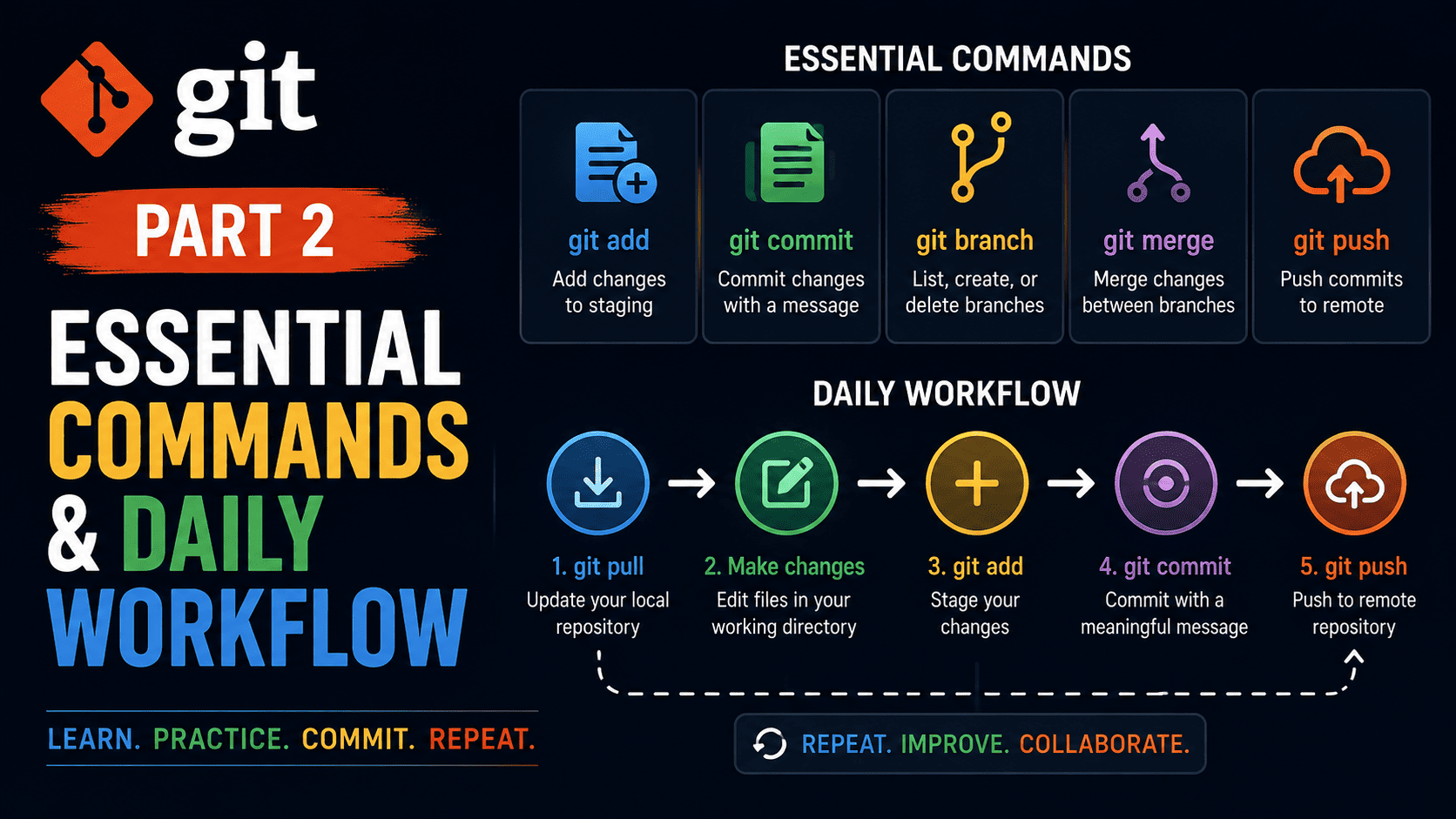
Welcome back to Techie Tweetz! This article is Part 2 of our four-part comprehensive series on Git and version control. In Part 1, we established the core philosophy behind version control and why distributed tracking systems are critical for modern software development. If you missed it, do not worry—this guide is completely standalone and designed to give you an immediate, practical understanding of day-to-day operations. Whether you are looking to brush up on your skills or learn the essentials for the first time, mastering basic git commands will dramatically improve your speed, confidence, and collaboration skills as a developer.
By the end of this guide, you will understand the fundamentals of local repository management, branch manipulation, remote syncing, and how to execute a clean, repeatable daily workflow without fear of losing code.
Setting Up and Configuring Your Local Environment
Before jumping into project execution, you need to configure your environment so Git knows who is making changes. Every commit you produce includes metadata containing your name and email address, making attribution clear across team projects.
To configure your identity globally across your machine, run these essential commands in your terminal:
git config --global user.name "Your Name"
git config --global user.email "your.email@example.com"
You can verify your configuration settings at any time by executing:
git config --listOnce identity configuration is complete, you will typically start working in one of two ways: starting a brand-new project locally or copying an existing repository from a remote server like GitHub, GitLab, or Bitbucket.
To initialize a new, empty Git repository inside your current directory, use:
git initThis creates a hidden directory named .git containing all the database structures and object references Git requires to track your files. Alternatively, if you are joining an existing project, you clone the remote repository to your local computer:
git clone https://github.com/user/repository.gitThe Three Local States and Core Basic Git Commands
To write effective code with Git, you must mentally visualize how Git categorizes file changes. Git manages your files across three primary areas locally:
- Working Directory: The actual files you see and edit on your computer’s file system.
- Staging Area (Index): A temporary preparation zone where you collect and organize modifications before locking them into history.
- Local Repository (HEAD): The permanent history database containing all committed snapshots.
Navigating between these three areas requires a set of fundamental basic git commands that form the backbone of your routine activity.
1. Checking Repository Status
The single most frequently used command in Git is git status. It tells you which branch you are currently on, which files have been modified, which files are staged for the next commit, and which files are untracked.
git statusIt is good practice to run this command before and after staging or committing files to ensure you know exactly what changes are being processed.
2. Staging Changes with Git Add
When you edit, create, or delete files, Git marks them as modified in your Working Directory. To move these modifications into the Staging Area, use git add.
To stage a single file:
git add index.htmlTo stage all modified and new files across the entire directory tree at once:
git add .Staging gives you precise control. You can modify five files, but only stage two of them for a specific commit, keeping your repository history modular and easy to read.
3. Saving Snapshots with Git Commit
Once your desired changes are staged, you permanently record them in your local repository history using git commit. Every commit requires a clear descriptive message outlining what changed and why.
git commit -m "Add responsive navigation menu to header"A good commit message follows a concise, imperative style (e.g., “Fix user authentication bug” rather than “Fixed user authentication bug”). Writing clear commit messages helps teammates understand the evolution of the codebase during code reviews.
Inspecting and Comparing Repository History
Software development requires frequent investigation of past work. Git provides built-in tools to inspect historical commits and compare differences across files.
Viewing Commit Logs
To view the sequential history of commits in your current branch, use git log:
git logBecause full logs can be lengthy, developers often use flags to format the output into a streamlined, single-line presentation:
git log --oneline --graph --decorateThis condensed view allows you to see commit SHA hashes, commit messages, branch pointers, and merge structures at a glance.
Comparing File Changes with Git Diff
If you want to review line-by-line edits before staging them, run:
git diffThis command compares your current Working Directory against your Staging Area. If you want to see what is currently staged and ready to be committed, use the --staged flag:
git diff --stagedBranching Basics for Isolated Development
Branching is one of Git’s most powerful features. A branch represents an independent line of development. By isolating your work on dedicated feature branches, you prevent unstable code from affecting the main production codebase.
Creating and Switching Branches
In modern Git versions, the git switch command is preferred for moving between branches (replacing older multi-purpose commands like git checkout).
To create a new branch and switch to it in a single step, execute:
git switch -c feature/user-loginTo list all local branches in your project:
git branchTo switch back to your primary branch (usually named main or master):
git switch mainMerging Feature Branches
Once feature development is complete and tested on your branch, you merge those changes back into your target branch. First, switch to the branch you want to receive the updates (e.g., main), then run:
git merge feature/user-loginIf no conflicting changes occurred on main while you were working, Git executes a “fast-forward” or simple merge automatically.
Syncing with Remote Repositories
Local commits remain exclusively on your computer until you push them to a shared remote server. Syncing involves three fundamental operations: fetching, pulling, and pushing.
1. Fetching vs. Pulling
To download new commits, branches, and tags from the remote repository without merging them into your local work immediately, use:
git fetch originIf you want to fetch and automatically merge remote updates into your active local branch in one step, use:
git pull origin mainRunning git pull regularly ensures your local branch stays up to date with the latest work committed by your team members.
2. Pushing Local Changes
When your feature branch commits are ready for the remote repository, push them upstream using:
git push -u origin feature/user-loginThe -u (or --set-upstream) flag links your local feature branch directly to the corresponding remote branch on origin. For all subsequent pushes on this branch, you only need to run git push.
A Step-by-Step Practical Daily Workflow
Now that you know the individual commands, let us connect them into a real-world daily development sequence. Following a disciplined workflow minimizes software regressions, prevents code overwrites, and simplifies pull requests.
Step 1: Start Your Day with Fresh Code
Before writing a single line of new code, switch to your primary branch and fetch the latest updates contributed by your team:
git switch main
git pull origin main
Step 2: Isolate Work on a Feature Branch
Create a short-lived branch descriptive of your assigned task:
git switch -c feature/payment-gatewayStep 3: Edit Files and Make Micro-Commits
As you build the feature, commit your work frequently in small, logical chunks rather than making one giant commit at the end of the day:
# Work on database models...
git add app/models/payment.js
git commit -m "Create payment schema and validation"

# Work on API integration...
git add app/api/stripe.js
git commit -m "Integrate Stripe API checkout endpoint"
Step 4: Push Branch and Open a Pull Request
When your feature is complete and verified locally, publish your branch to the remote service:
git push -u origin feature/payment-gatewayYou can now navigate to your web platform (e.g., GitHub) to open a Pull Request (PR) or Merge Request (MR) for peer code review.
Step 5: Clean Up Local Branches
After your pull request is approved and merged into main remotely, switch back to main locally, pull down the combined changes, and delete your obsolete feature branch:
git switch main
git pull origin main
git branch -d feature/payment-gateway