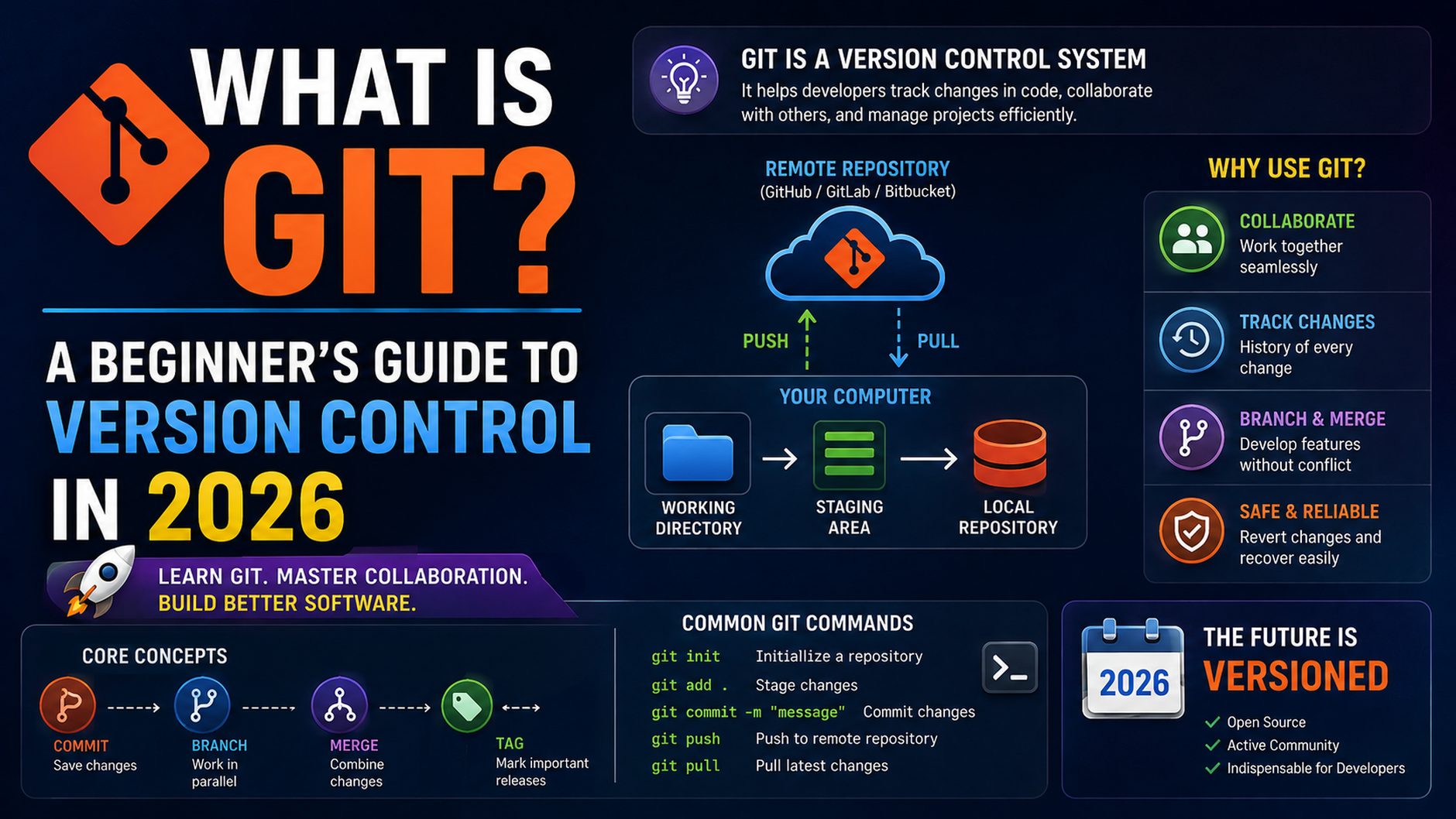
If you’re just starting out as a developer, one of the first tools you’ll hear about is Git. It’s used by millions of developers worldwide — from solo freelancers to teams at Google, Microsoft, and Amazon.
But what exactly is Git, and why do you need it? In this beginner’s guide, we’ll explain everything you need to know about Git version control — from the basics to your first commit.
What is Git?
Git is a free, open-source version control system that tracks changes in your code over time. It was created by Linus Torvalds (the creator of Linux) in 2005 and has since become the most widely used version control tool in the world.
Think of Git like a time machine for your code:
- It records every change you make
- You can go back to any previous version
- Multiple developers can work on the same project simultaneously
- You never lose your work
What is Version Control?
Version control is a system that records changes to files over time so you can recall specific versions later.
Without version control:
- ❌ You might accidentally delete important code
- ❌ Multiple developers overwrite each other’s work
- ❌ You can’t track who made what changes
- ❌ Rolling back a broken feature is nearly impossible
With Git version control:
- ✅ Every change is tracked with a timestamp and author
- ✅ Multiple developers can work simultaneously
- ✅ Roll back to any previous version in seconds
- ✅ Experiment safely with branches
Git vs GitHub — What’s the Difference?
This is one of the most common points of confusion for beginners:
| Git | GitHub | |
|---|---|---|
| What is it? | Version control software | Cloud hosting for Git repositories |
| Where does it run? | On your local computer | On the internet |
| Is it free? | Yes, always | Free for public repos |
| Made by | Linus Torvalds | Microsoft |
Simply put — Git is the tool, GitHub is the platform. You use Git locally and push your code to GitHub to share it with others.
Installing Git
On Ubuntu/Linux:
bash
sudo apt update
sudo apt install git -y
On macOS:
bash
brew install gitOn Windows:
Download Git from git-scm.com and run the installer.
Verify installation:
bash
git --versionSetting Up Git for the First Time
After installing Git, configure your name and email:
bash
git config --global user.name "Your Name"
git config --global user.email "your@email.com"
Verify your configuration:
bash
git config --listEssential Git Commands for Beginners
Initialize a Repository
bash
git initCreates a new Git repository in your current folder.
Clone a Repository
bash
git clone https://github.com/username/repository.gitDownloads an existing repository from GitHub to your computer.
Check Status
bash
git statusShows which files have been changed, staged, or committed.
Add Files to Staging
bash
# Add a specific file
git add filename.txt

# Add all changed files
git add .
Commit Changes
bash
git commit -m "Your commit message here"Saves your staged changes with a descriptive message.
View Commit History
bash
git log
git log --oneline
Push to GitHub
bash
git push origin mainUploads your local commits to GitHub.
Pull Latest Changes
bash
git pull origin mainDownloads the latest changes from GitHub to your local machine.
Understanding the Git Workflow
Here’s the basic Git workflow every beginner should know:
Working Directory → Staging Area → Local Repository → Remote Repository
(edit) (git add) (git commit) (git push)- Edit your files in the working directory
- Stage the changes you want to save with
git add - Commit the staged changes with
git commit - Push your commits to GitHub with
git push
Working with Branches
Branches allow you to work on new features without affecting the main codebase — one of Git’s most powerful features.
Create a New Branch
bash
git branch feature-loginSwitch to a Branch
bash
git checkout feature-login
# or (modern way)
git switch feature-login
Create and Switch in One Command
bash
git checkout -b feature-loginList All Branches
bash
git branchMerge a Branch
bash
# Switch to main branch first
git checkout main

# Merge your feature branch
git merge feature-login
Delete a Branch
bash
git branch -d feature-loginYour First Git Project — Step by Step
Let’s put it all together with a simple example:
bash
# 1. Create a new folder
mkdir my-first-project
cd my-first-project

# 2. Initialize Git
git init

# 3. Create a file
echo "# My First Project" > README.md

# 4. Stage the file
git add README.md

# 5. Commit
git commit -m "Initial commit: Add README"

# 6. Connect to GitHub (create a repo on GitHub first)
git remote add origin https://github.com/yourusername/my-first-project.git

# 7. Push to GitHub
git push -u origin main
Congratulations — you’ve made your first Git commit! 🎉
Common Git Mistakes and How to Fix Them
Committed to wrong branch:
bash
git reset HEAD~1
git stash
git checkout correct-branch
git stash pop
Want to undo last commit (keep changes):
bash
git reset --soft HEAD~1Want to undo last commit (discard changes):
bash
git reset --hard HEAD~1Accidentally deleted a file:
bash
git checkout -- filename.txtFinal Thoughts
Git is one of the most important tools in a developer’s toolkit. Once you get comfortable with the basic commands — init, add, commit, push, and pull — you’ll wonder how you ever coded without it.
Key takeaways:
- Git tracks every change you make to your code
- GitHub is where you store and share your Git repositories
- Always write clear, descriptive commit messages
- Use branches for new features and bug fixes
Are you new to Git or already a pro? Share your experience in the comments! 👇
Found this helpful? Check out our Web Development category for more beginner-friendly tutorials!