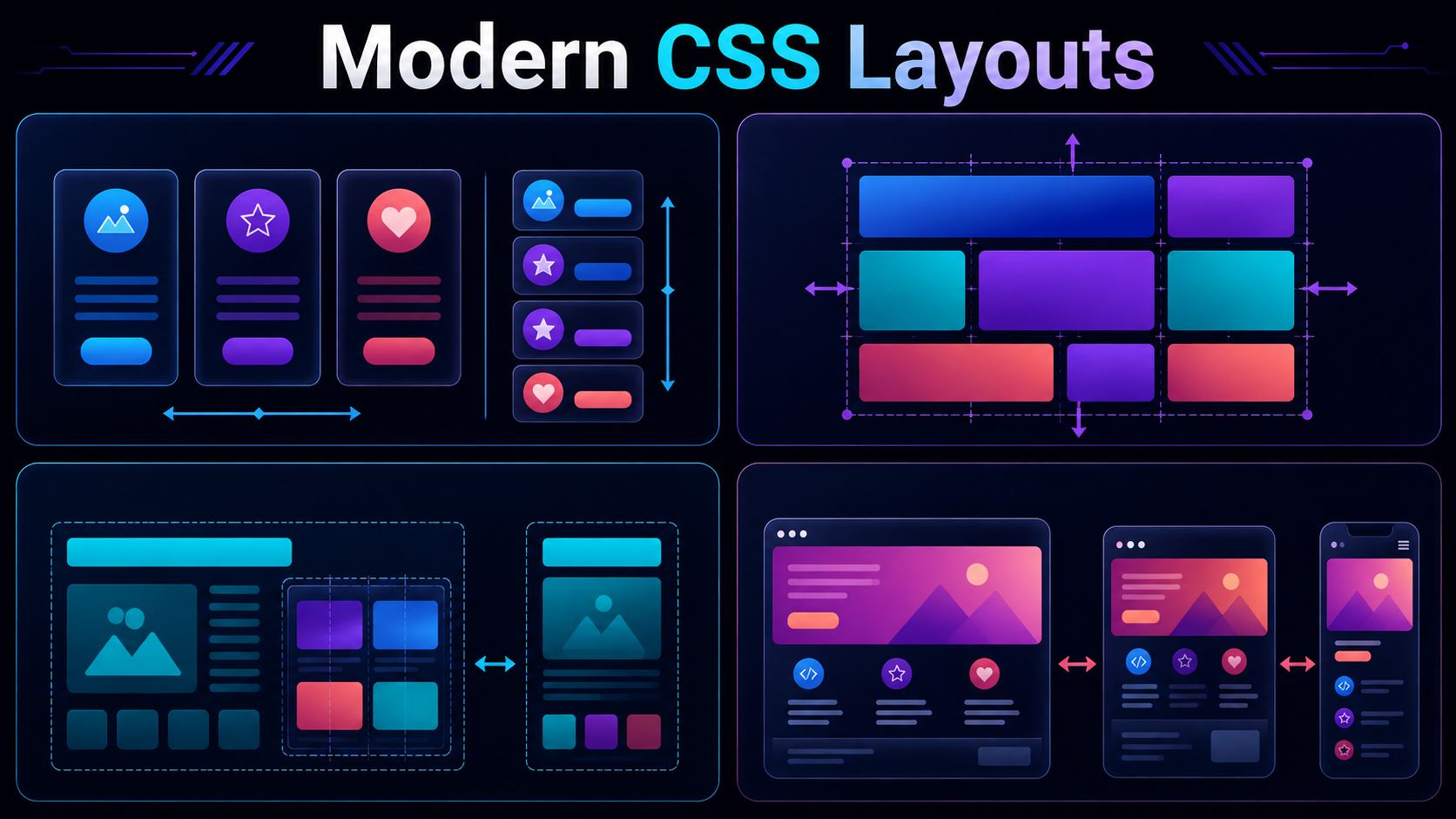
Welcome to the fourth and final installment of our modern CSS layouts series here at Techie Tweetz! Throughout this journey, we have dissected the inner workings of CSS Grid, Flexbox, and the cutting-edge realm of Container Queries. If you are just joining us, do not worry. While this article acts as the grand finale of our series, it is designed to stand completely on its own. You do not need to have read the previous entries to dive right in and start building beautiful, robust responsive layouts today.
In the early days of web design, we relied heavily on floats, tables, and rigid grid frameworks to align our elements. Today, the modern web demands fluid, device-agnostic interfaces that adapt intelligently to any screen size, device orientation, or container. Building truly modern responsive CSS layouts requires a shift in mindset: moving away from rigid, pixel-perfect designs and embracing the fluid nature of the web. In this guide, we will build four of the most common real-world page patterns using clean, semantic CSS Grid and Flexbox techniques. We will walk through the code step-by-step and analyze the exact design decisions that make them work seamlessly across mobile, tablet, and desktop viewports.
Pattern 1: The Modern Holy Grail Layout
The “Holy Grail” layout is one of the oldest structural patterns in web design. It consists of a header at the top, a footer at the bottom, and a three-column middle section featuring a main content area flanked by two sidebars (typically a navigation panel on the left and utility or advertising space on the right). Historically, this layout required complex CSS hacks, negative margins, or absolute positioning. Today, we can build a bulletproof version in just a few lines of CSS Grid.
Let us look at the semantic HTML structure first:
<div class="holy-grail-wrapper">
  <header class="main-header">Header</header>
  <nav class="side-nav">Navigation</nav>
  <main class="main-content">Main Content Area</main>
  <aside class="side-aside">Aside Panel</aside>
  <footer class="main-footer">Footer</footer>
</div>
To make this layout responsive, we use a mobile-first approach. On small screens, we want a simple vertical stack. On larger screens, we will transition to a three-column grid. We achieve this cleanly using grid-template-areas, which allows us to visually map our design directly inside our CSS:
.holy-grail-wrapper {
  display: grid;
  grid-template-columns: 1fr;
  grid-template-rows: auto auto auto auto auto;
  grid-template-areas:
    "header"
    "nav"
    "content"
    "aside"
    "footer";
  min-height: 100vh;
  gap: 1rem;
}

.main-header { grid-area: header; }
.side-nav { grid-area: nav; }
.main-content { grid-area: content; }
.side-aside { grid-area: aside; }
.main-footer { grid-area: footer; }

@media (min-width: 768px) {
  .holy-grail-wrapper {
    grid-template-columns: 200px 1fr 200px;
    grid-template-rows: auto 1fr auto;
    grid-template-areas:
      "header header header"
      "nav content aside"
      "footer footer footer";
  }
}
By defining our grid layout with grid-template-areas, we decouple our visual arrangement from the physical order of the HTML elements. If we decide that our sidebar should sit on the right on mobile screens but on the left on desktop screens, we can change it instantly by shifting the names within our CSS string. Setting min-height: 100vh on the grid wrapper ensures that the footer will remain at the bottom of the screen even if there is very little content in the main block.
Pattern 2: The Fluid, No-Media-Query Card Grid
Many modern user interfaces rely on card grids to display blog posts, product listings, or dashboard metrics. A classic pitfall of responsive CSS layouts is over-relying on media queries to control the number of grid columns at different breakpoints. This often results in bloated stylesheets filled with repetitive code like: @media (min-width